Workspaces give you the ability to organise your account by creating separate areas for your different departments or projects.
TABLE OF CONTENTS
- How to use Workspaces
- Creating a Workspace
- Creating an Environment
- Moving an Environment
- FAQs
- Getting Help
How to use Workspaces
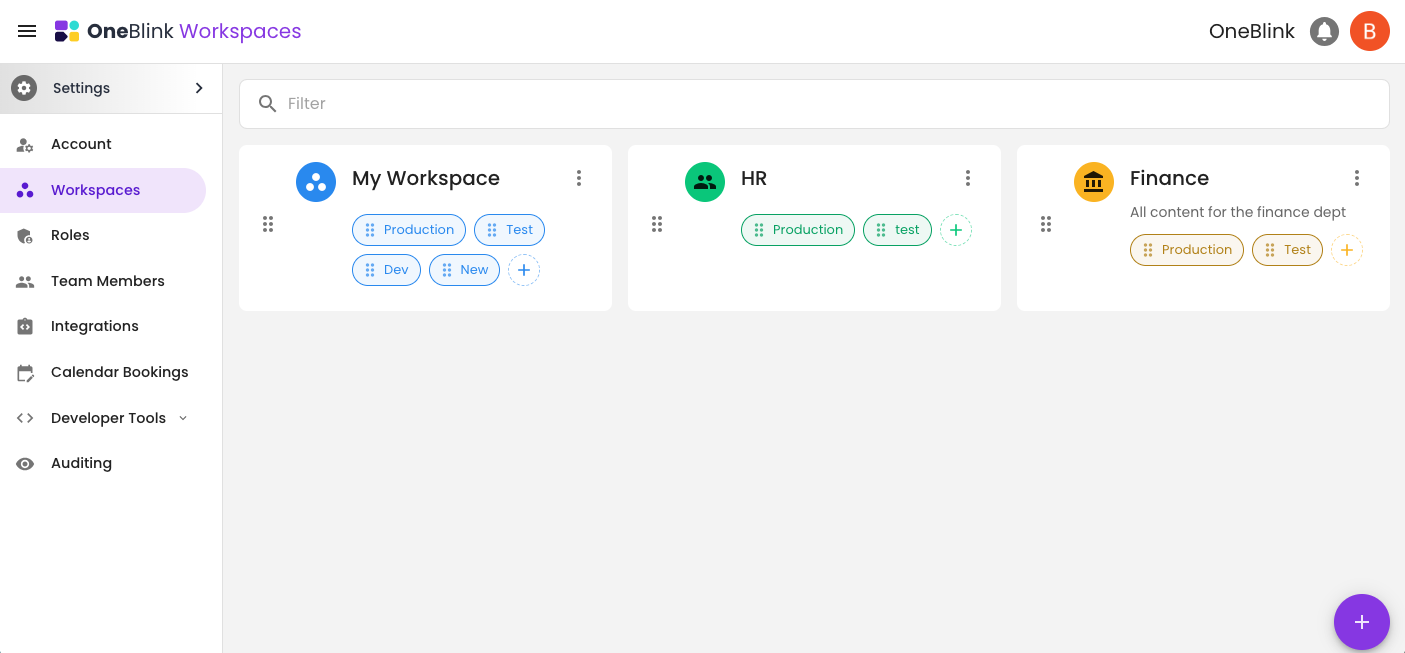
Workspaces are used to separate your accounts into specific areas for different groups of users. Team members can be restricted based on which environments they have access to. Environments allow you to create Development, Testing and Production spaces, allowing you to migrate Forms and Apps as they are worked on. For more on Environments, check out this article.
Creating a Workspace
By default, your account has one Workspace. To create another workspace, follow the steps below:
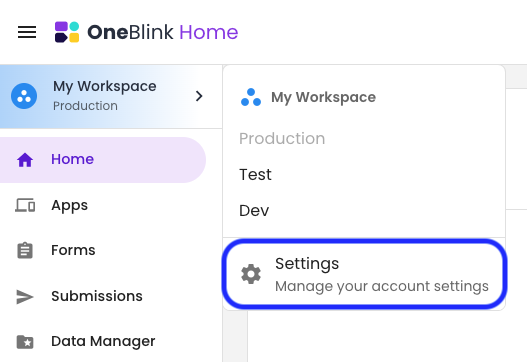
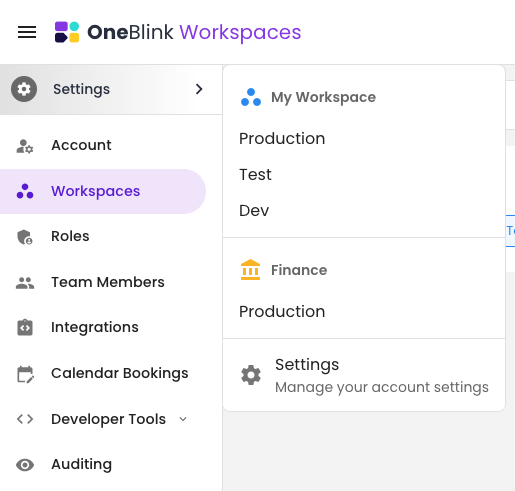
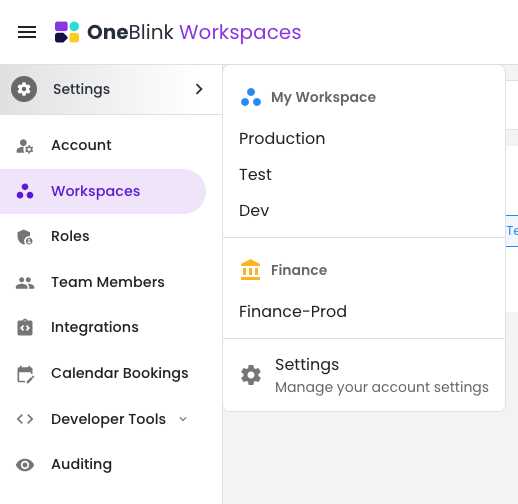
Step 1: Click on the Environment navigation and open the Settings Menu.
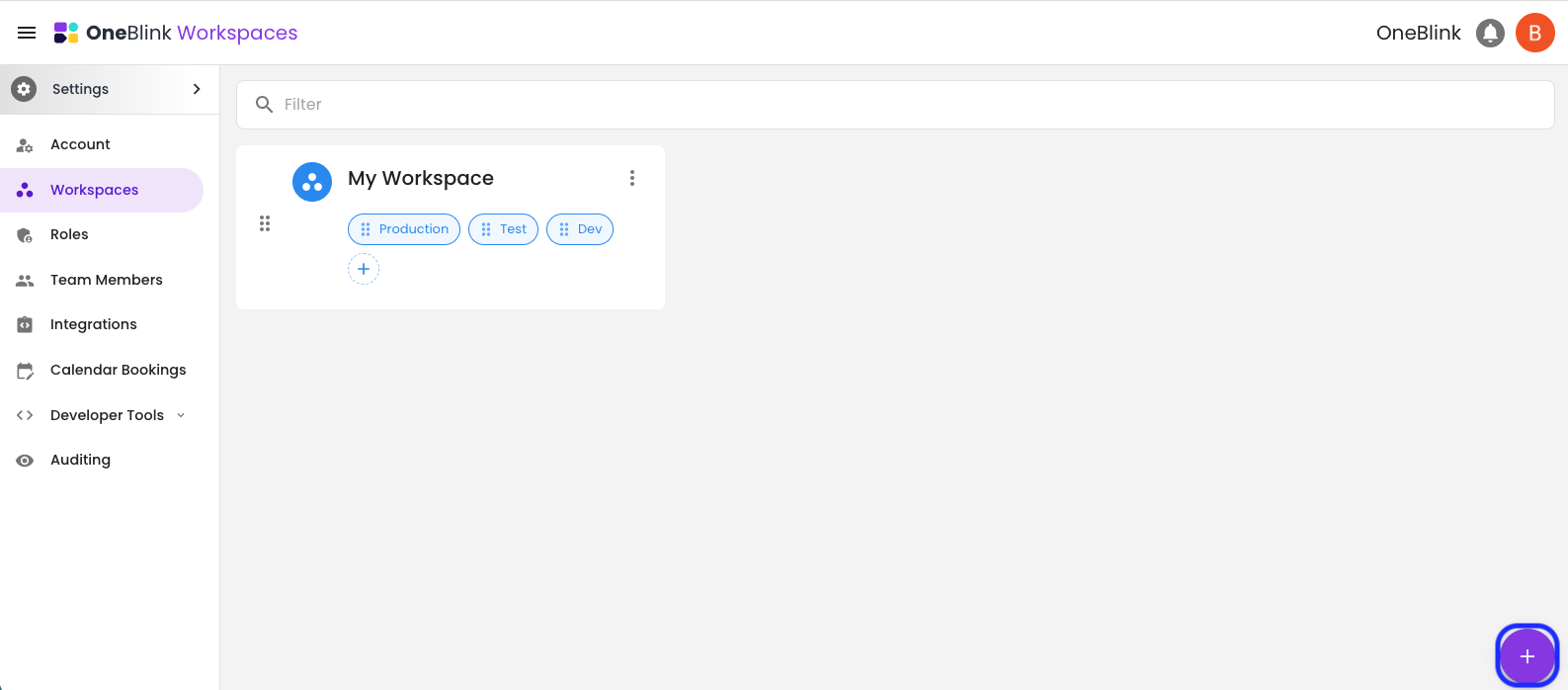
Step 2: Open the Workspaces menu and click the create button in the bottom right of the screen.
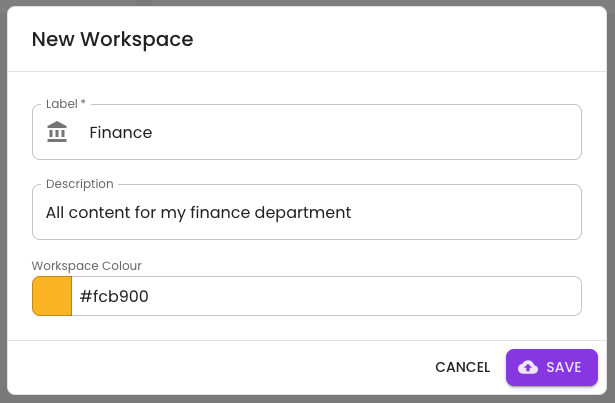
Step 3: Enter the details for your new workspace and click save.
- Label: The name of the Workspace
- Icon: The icon to represent the Workspace
- Description: A brief description of the purpose of the Workspace
- Colour: The colour that will appear in the platform for the background and icon.
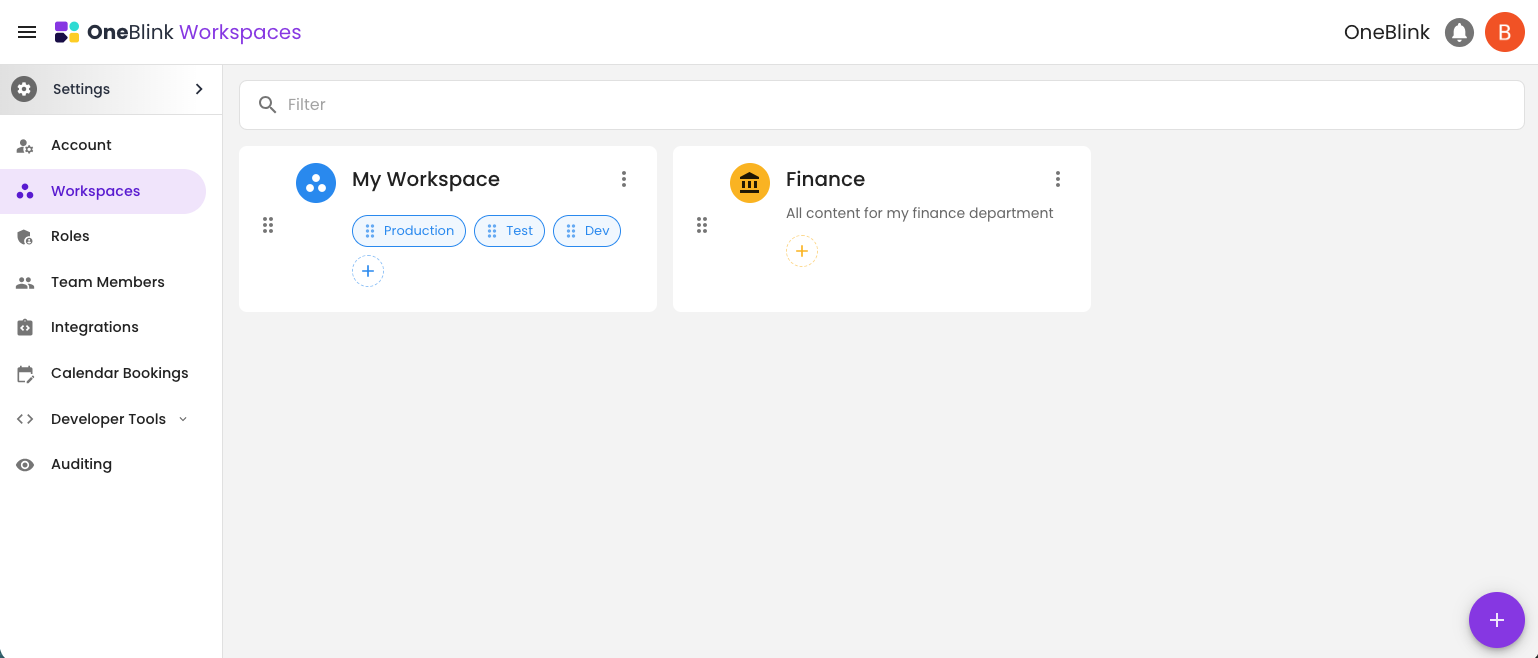
Step 4: Now your new Workspace will appear in the Workspace menu. You will either want to create an environment within the workspace or move an environment from a different workspace.
Creating an Environment
By default, when you create a new workspace, it will not include any environments. To start using the workspace, you will need to create at least one environment.
To create an environment in a workspace, follow the steps below:
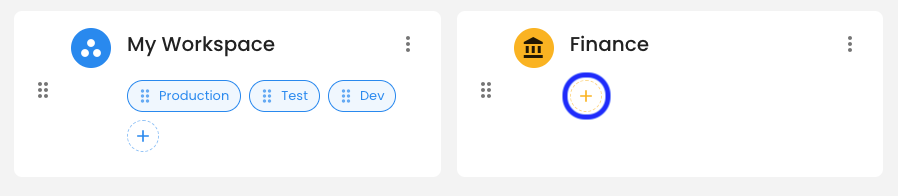
Step 1: Click the plus button in the workspace where you want to create the environment.
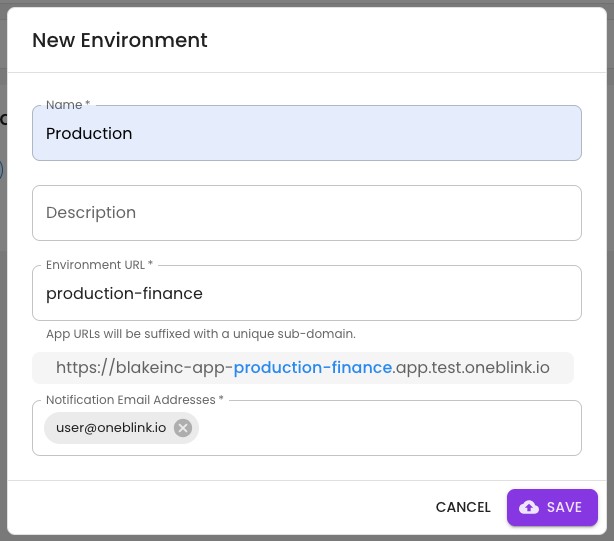
Step 2: Enter the environment settings:
- Name: The name of the first environment being created
- Environment URL: The URL domain suffix for the apps created in the environment
- Notification Email Address: The email address that will be notified if there is an issue with the Workspace environment.
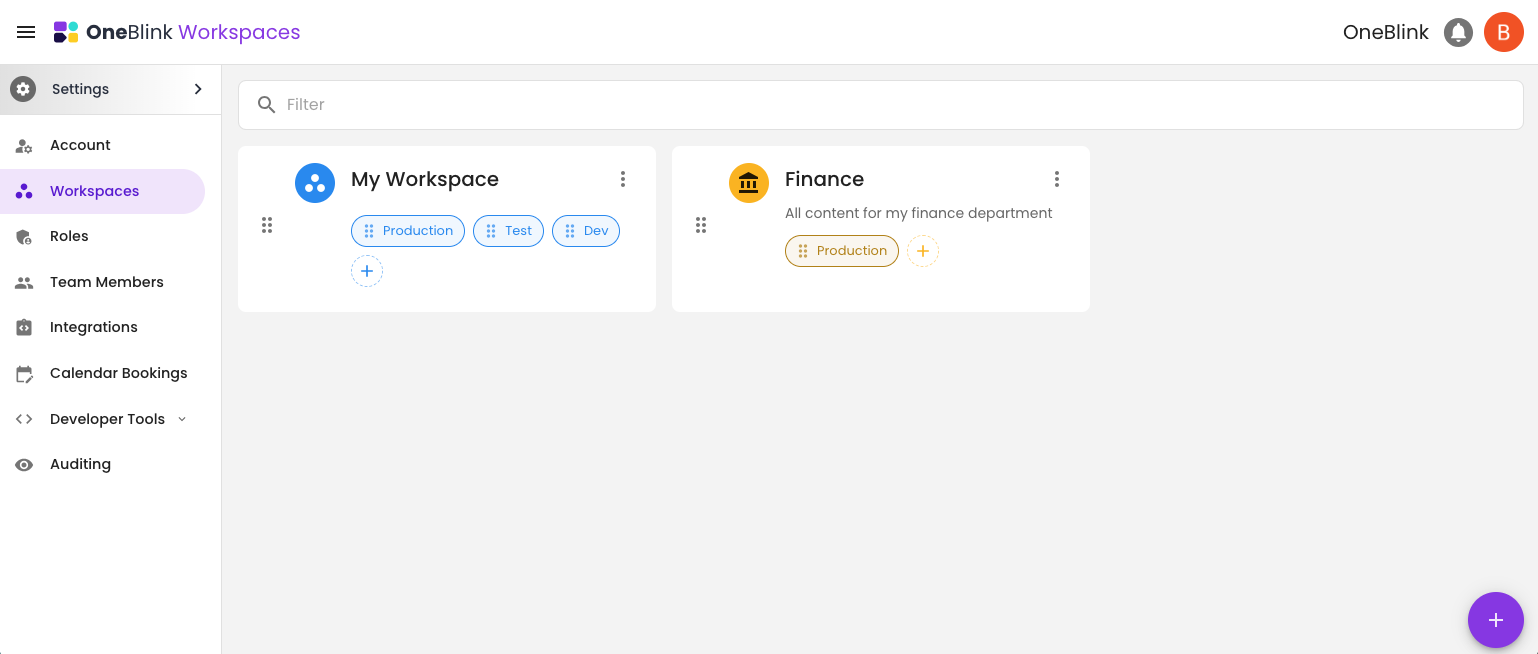
Step 3: Now your environment will appear in the Workspaces Menu and in the Environment Picker.
Moving an Environment
By default, when you create a new workspace, it will not include any environments. To start using the workspace, you can move an environment from one workspace to another.
To move an environment to a workspace, follow the steps below:
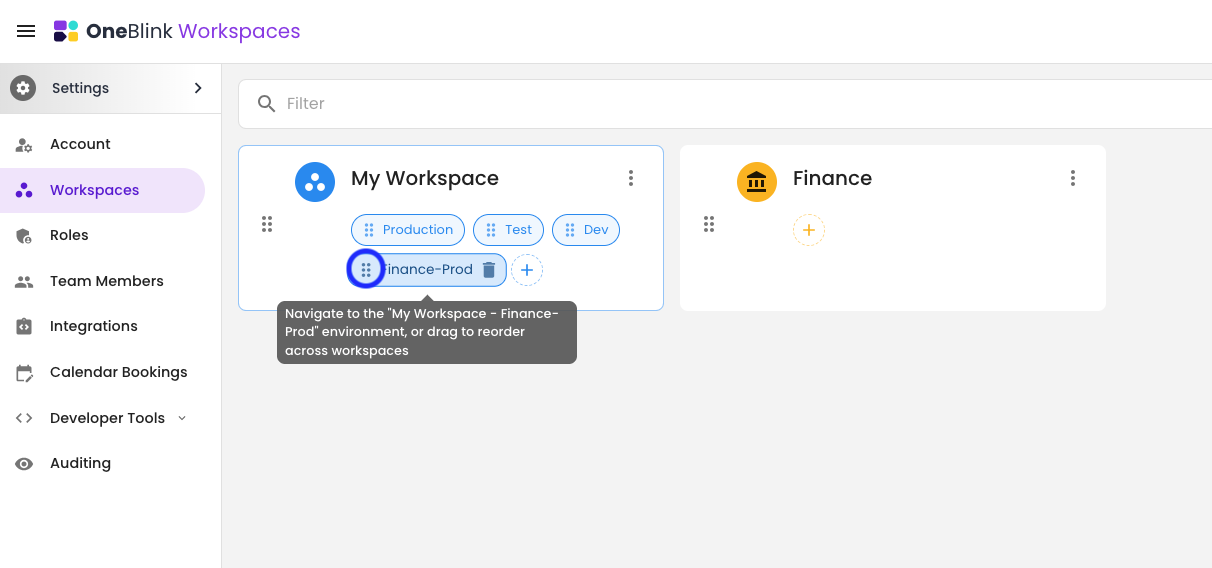
Step 1: From the Workspaces menu, hover over the environment you want to move, click and drag on the handle icon and move the environment chip into the new workspace, and release the mouse click.
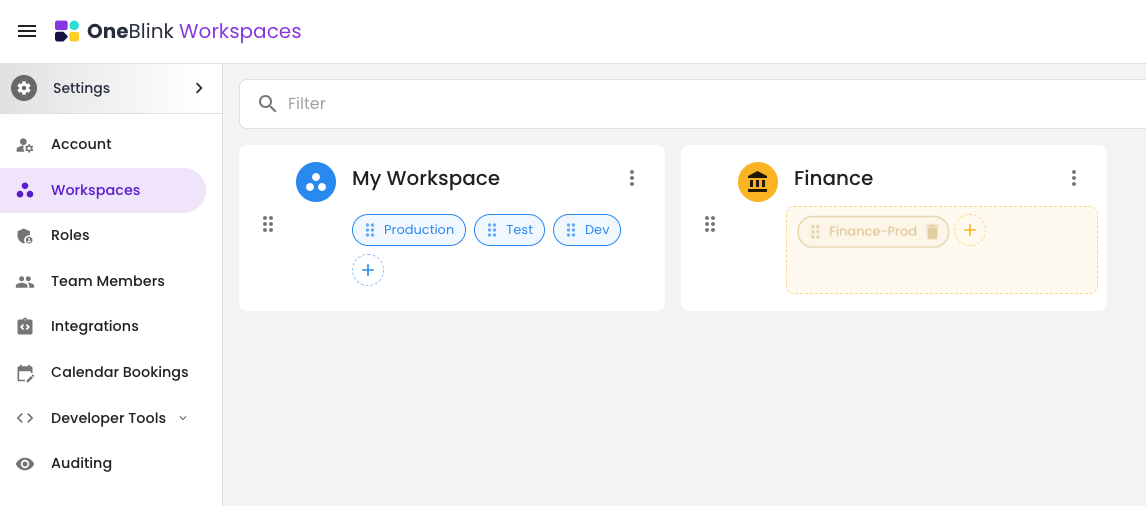
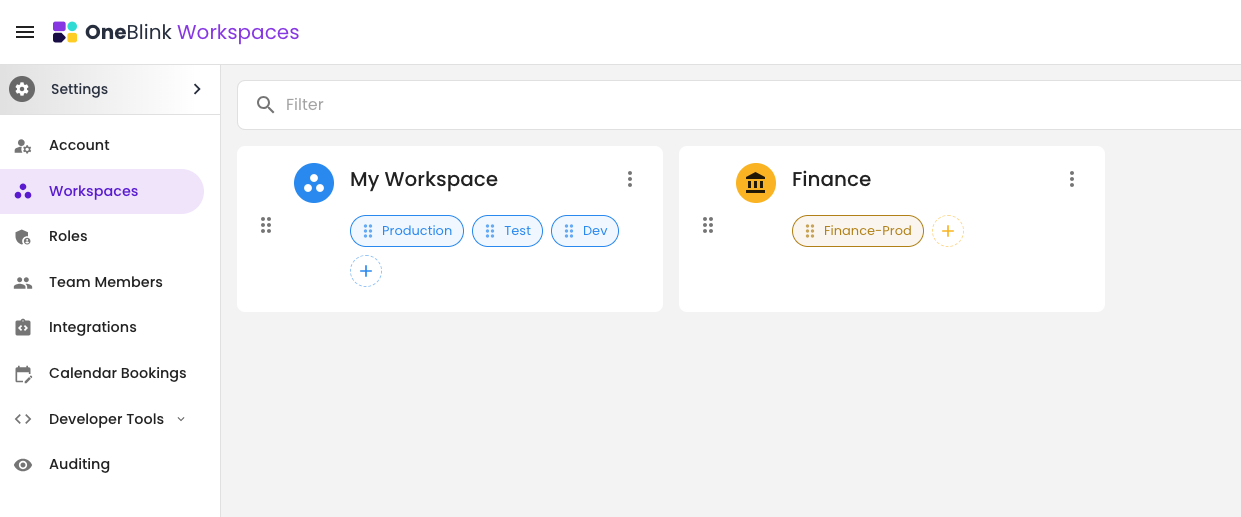
Step 2: Now the environment will appear in the new Workspace on the Workspaces menu and in the Environment Picker.
FAQs
Q. Is my account limited on how many Workspaces I can have?
A. Yes, accounts are limited based on their pricing tier. These limits can be found on the OneBlink Website.
Q. Can I limit who has access to a Workspace?
A. Yes, team members can still be limited to environments, meaning that team members can be restricted to only have access to the environments within specific workspaces.
Q. Are Workspaces account-wide or user-specific?
A. Workspaces like environments are account-wide configurations, which are the same for all Team members.
Q. Can Workspaces be cloned?
A. No, workspaces can not be cloned. However, environments can still be cloned and then easily moved between workspaces.
Q. Can I move Environments between Workspaces?
A. Yes, Environments can be moved from one Workspace to another from the Workspaces menu in the account settings.
Q. Can forms be migrated between Workspaces?
A. No, form migration is designed to only allow migration between environments within a specific workspace. However, if a form needs to be moved to another workspace, the environment it is in can be cloned and moved to another workspace.
Q. Are Environments, Apps or Domains affected by the introduction of Workspaces?
A. No, all existing Environment, App, and Domain configurations are the same. Workspaces are simply containers to hold specific environments to allow more easily separatations between Teams, Departments and Projects.
Getting Help
If you need any assistance with Workspaces, please reach out through the Report Issue menu or email support@oneblink.io.
Was this article helpful?
That’s Great!
Thank you for your feedback
Sorry! We couldn't be helpful
Thank you for your feedback
Feedback sent
We appreciate your effort and will try to fix the article