Custom Email Attachments is a developer feature that allows you to add files to emails sent by Email and Email + PDF workflow events. This feature requires custom development. You will need to configure an API endpoint that returns references to the files you want attached. The endpoint is called each time the workflow event runs.
TABLE OF CONTENTS
- Setting up Custom Email Attachments
- Request
- Request Properties
- Response
- Response Properties
- Use Cases
- Getting Help
Setting up Custom Email Attachments
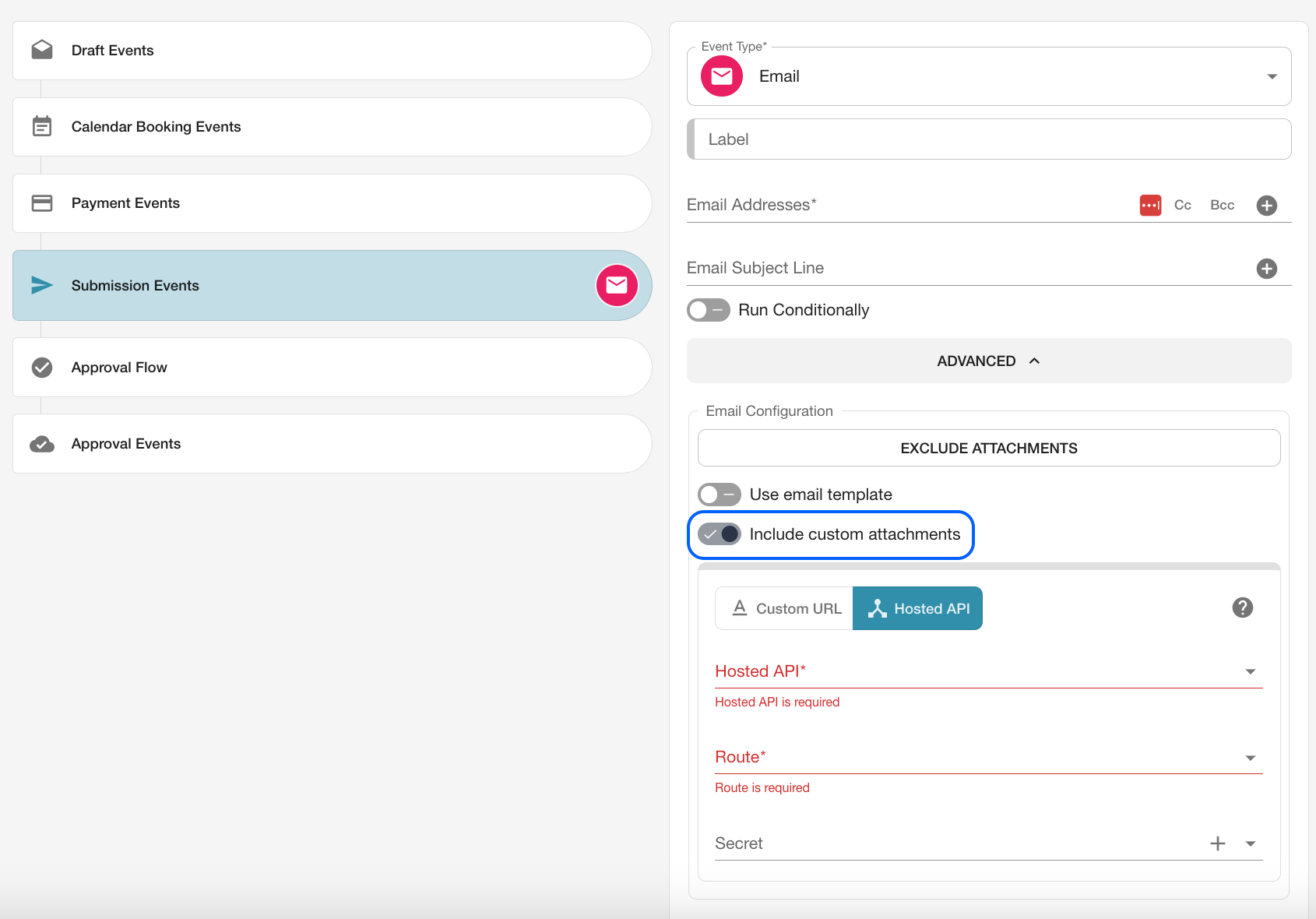
Custom attachments can be configured on Email workflow events.
Step 1: Open the form you want to configure.
Step 2: Open the Workflow tab.
Step 3: Add an Email workflow event.
Step 4: Turn on the Include custom attachments option.
Step 5: Choose either Custom URL or Hosted API.
Step 6: Configure your endpoint and secrets.
Request
The request sent to your endpoint uses the HTTP POST method.
The request includes the following headers:
Accept: application/json
Content-Type: application/json
The request payload is a JSON object in the following format:
{
  "formsAppId": 1,
  "formId": 1,
  "externalId": "external identifier",
  "isDraft": false,
  "secret": "ssshhh",
  "submissionId": "85fad0a4-b778-4aea-a6e7-671d84d58156",
  "submissionTimestamp": "2018-01-01T00:00:00.000Z",
  "username": "user@example.com",
  "userToken": "27e009cd8d1e8df917ee0be13262631f:098dec436bc21937a99343ec1112fb22",
  "jobId": "29e8138d-b28c-49da-b357-f4974adbf0a6"
}
Request Properties
formsAppId: The identifier for the app.
formId: The identifier for the form.
externalId: Your identifier provided through the URL or receipt generation when opening the form.
isDraft: Set to true if the submission was a draft submission.
secret: The secret entered in the submission event configuration.
submissionId: The identifier for the submission.
submissionTimestamp: An ISO 8601 timestamp for the time of submission.
username: The username of the logged-in user who submitted the form. This is not included for anonymous submissions.
jobId: The identifier for the job if the user is attempting to complete a job. This will be set to null if no job is specified.
userToken: An encrypted token containing an identifier for the user who submitted the form, if set by a developer when generating a Forms as a Service (FaaS) URL.
Response
Your endpoint must return a JSON response. The response should include the attachments that will be added to the email.
{
  "attachments": [
    {
      "filename": "image.png",
      "contentType": "image/png",
      "s3": {
        "region": "ap-southeast-2",
        "bucket": "customer.storage.oneblink.io",
        "key": "expires-daily/33ccf39e-7a1e-434f-96c4-9a18e273d914/image.png"
      }
    }
  ]
}
Response Properties
attachments: An array of attachments.
attachments[].filename: The name of the file.
attachments[].contentType: The MIME type of the file.
attachments[].s3: The AWS S3 configuration referencing the file.
attachments[].s3.region: The AWS region the file was uploaded to.
attachments[].s3.bucket: The S3 bucket the file was uploaded to.
attachments[].s3.key: The key representing the object in S3.
Use Cases
Add a custom PDF to an email
You may want to create a custom PDF instead of using the PDF generated by the Email workflow event.
To do this, you can create an Email workflow event, enable custom attachments, use the SDK to generate a custom PDF with the required look and feel, and attach that PDF to the email workflow event.
Below is an example of how to generate a custom PDF.
console.log("Generating custom PDF");
 const pdf = await pdfSDK.generatePDF({
  body: {
   html: pdfHtml,
  },
 });
const OneBlink = require('@oneblink/sdk')
  const options = {
    accessKey: '',
    secretKey: '',
  }
  const forms = new OneBlink.Forms(options)
const emailAttachment = await forms.uploadEmailAttachment({
      filename: 'invoice.pdf',
      contentType: 'application/pdf',
      body: pdf,
    })
 const attachments =
 {
  "attachments": [
   emailAttachment
  ]
 };
 if (Logs.LogLevel <= Logs.LogLevelEnum.info) console.log('attachments:', attachments);
 return attachments
}
Add user-uploaded files to an email
By default, files uploaded to a form are included in the email body as links. These links last for as long as your account retention policy is configured.
If you want uploaded files to be sent as attachments instead, you can use the Custom Email Attachments feature with an out-of-the-box email event and custom development to generate and attach the files.
Getting Help
If you need any assistance with Custom Email Attachments, please reach out through the Report Issue menu or email support@oneblink.io.
Was this article helpful?
That’s Great!
Thank you for your feedback
Sorry! We couldn't be helpful
Thank you for your feedback
Feedback sent
We appreciate your effort and will try to fix the article